Showing posts with label office. Show all posts

How to Find Your Lost Windows or Office Product Keys


If you’re planning on doing a reinstall of Windows but can’t find your product key, you’re in luck because it’s stored in the Windows Registry… it’s just not easy to find, and it’s impossible to read without some help. Luckily, we’re here to help.
As you can see in the screenshot above, the product ID is stored in the registry but is in a binary format that can’t be read by humans unless you are some sort of Cylon. You aren’t, are you?
We’re not really sure why Microsoft went to great lengths to make it difficult to see the product keys for their software, especially since they are stored right in there in the registry and can be read by software, if not by humans. We can only assume that they don’t want anybody to re-use a key from an old computer.
The great thing is that you can even recover a key from a computer that won’t boot anymore. All you need is access to the disk drive from a working computer. Keep reading for more.
Note: the NirSoft keyfinder won’t always work for OEM computers, depending on how they decided to activate the licenses they might have used a single license for all computers. It also doesn’t work for Office 2013.

Three Places You Might Find the Key


The key you need will be in one of three places:
  • Stored in software on your PC: When you (or your PC manufacturer) installs Windows, Windows stores its product key in the registry. You can extract this product key, and — often — enter it when reinstalling Windows on your PC. Crucially, you’ll need to grab it from your operating system before you begin reinstalling Windows or it could be deleted if you format your hard drive.
  • Printed on a sticker: Some PCs use a technology called “System Locked Pre-installation,” or SLP. If your PC uses this, the product key on your PC — the one stored in the registry, and the one key-viewer applications display — will be different from the actual key your PC needs. The actual key is on a certificate of authenticity (COA) sticker on your PC or its power supply. The one in the registry and key-viewer application is a red herring. This system was common for Windows 7 PCs.
  • Embedded in your PC’s UEFI firmware: Many newer PCs that come with Windows 8 use a new method. The key for the version of Windows the PC comes with is stored in the computer’s UEFI firmware or BIOS. You don’t even need to know it — assuming you’re installing the same edition of Windows the PC came with, it should automatically activate and work without you needing to enter a key. It’ll all happen automatically.
Be sure to use the same version and edition of Windows the computer came with. In other words, if it came with Windows 7 Home Premium, you can’t install Windows 7 Professional.

Finding the Windows Key Without Any Software (Advanced Users Only)

Assuming you can boot your computer without any problems, you can easily create a simple VBscript that will read the value out of the registry and then translate it into the format that you need for reinstalling. I'm not sure where this script came from, but i found it on a forum a long time ago, so i'm sharing it here for you.
Copy and paste the following into a Notepad window:
Set WshShell = CreateObject("WScript.Shell")
MsgBox ConvertToKey(WshShell.RegRead("HKLM\SOFTWARE\Microsoft\Windows NT\CurrentVersion\DigitalProductId"))

Function ConvertToKey(Key)
Const KeyOffset = 52
i = 28
Chars = "BCDFGHJKMPQRTVWXY2346789"
Do
Cur = 0
x = 14
Do
Cur = Cur * 256
Cur = Key(x + KeyOffset) + Cur
Key(x + KeyOffset) = (Cur \ 24) And 255
Cur = Cur Mod 24
x = x -1
Loop While x >= 0
i = i -1
KeyOutput = Mid(Chars, Cur + 1, 1) & KeyOutput
If (((29 - i) Mod 6) = 0) And (i <> -1) Then
i = i -1
KeyOutput = "-" & KeyOutput
End If
Loop While i >= 0
ConvertToKey = KeyOutput
End Function
You’ll need to use File -> Save As, change the “Save as type” to “All Files” and then name it productkey.vbs or something similar ending with the vbs extension. We’d recommend saving to the desktop for easy access.
Once you’ve saved it, you can just double-click and the popup window will show you your product key.

Protip: If you use CTRL + C when the popup window is active, it will copy the contents of the window to the clipboard, and then you can paste it into Notepad or somewhere else.

Use NirSoft’s ProduKey to Recover Product Keys (Even if You Can’t Boot the PC)

The easiest way to get access to your product key is with a third-party utility, and there’s nobody better at those than NirSoft. Their utilities are always crapware-free, and are always really useful. The only issue with this particular utility is that some antivirus will detect it as a false positive, because some malware might try to steal your product key.
Note: if your OEM installed your computer and used a single key for all their PCs, this key might not actually work to reinstall your computer. Keep reading for more information.
All you have to do is download ProduKey, unzip it, and then run it to immediately see all of your product keys. It’s as simple as that.
If you want to recover a key from a dead computer, you can hook up the hard drive to a working PC, and then run ProduKey and use File -> Select Source to point to the external Windows directory. You can then grab the keys from that computer easily.
You can also use a Linux live CD to pull the Windows directory off the other computer and onto a thumb drive, or just grab the registry files if you prefer.

Read the Key From the COA Sticker

So, is that product key usable for reinstalling Windows on your PC? If you have a Windows 7-era PC, there’s a good chance the PC’s key is a single key the manufacturer uses for all their PCs. Thanks to “System Locked Pre-installation,” you’re not allowed to use that key to install Windows. If you try, you’ll get error messages about the key being invalid.
To check, you’ll need to look for a certificate of authenticity sticker on your computer. The COA sticker verifies that the computer came with an authentic copy of Windows, and that sticker has a product key printed on it. You’ll need that product key to reinstall Windows — and, if the manufacturer used System Locked Pre-installation, that key is different from the one your PC came with in software.
Examine your computer to find the key. On a laptop, it may be on the bottom of the laptop. If your laptop has a removable battery, it may be under the battery. If there’s some sort of compartment you can open, it might be in there. It may even be stuck to the laptop’s charger brick. If it’s a desktop, look on the side of the desktop’s case. If it’s not there, check the top, back, bottom, and anywhere else it might be.
If the key has rubbed off of the sticker, there’s not much you can do. You can try contacting your computer’s manufacturer and explaining what happened, but we can’t guarantee they’ll help. Microsoft would always be happy to sell you another key, though!

Simple Questions: What is a Windows Live ID or a Microsoft account?

Have you been using devices, tools or services from Microsoft? Then, at some point you might have been asked to provide a Windows Live ID. In Windows 8 you have been asked for a Microsoft Account. Never understood what they are and why you need them, let alone the benefits of having them? If that’s the case, then you should read this article, as it will explain everything you need to know about the Windows Live ID, also called Microsoft Account.

What is Windows Live ID/Microsoft Account?

The question is relatively simple to answer - Windows Live ID or Microsoft Account is an ID composed from an e-mail address and password, which you can use to login to most Microsoft websites, services and properties such as: Hotmail, Xbox Live, all Windows Live services (including SkyDrive and Messenger). It can be used also on your Windows computer, to enhance parental controls for the user accounts used by your children. In Windows 8 it is used to get access to all its features, including integration with Skydrive or to use the application Store. Windows 8, at least so far, is the only place where you will encounter the naming Microsoft Account instead of Windows Live ID. They are the same thing though.

Do I Have a Windows Live ID/Microsoft Account?

How do you know if you have a Windows Live ID? Easy - are you using any of these services: Hotmail, Windows Live Messenger or Xbox Live? If you are, then you already have a Windows Live ID. Use the same e-mail and password to log in to any other websites or services requesting a Windows Live ID.

How to Create a Windows Live ID/Microsoft Account (With or Without a Microsoft E-mail Address)?

If you don’t have a Windows Live ID, you can easily create one by completing all the required forms on the Windows Live Signup Page. When you complete the form, Microsoft proposes that you create an ID using one of their e-mail services (Hotmail or Live.com).
If you already have an e-mail address from another provider and you don’t want to create a new one with Microsoft, you CAN use that one instead. On the signup page, look for a link saying: "Or use your own email address". Click on it and wait for a slightly different form to load.
Complete your existing e-mail address, a password and all the other requested details, and you will have your Windows Live ID created in no time.
Watchout: If you create a Windows Live ID using an existing email address, it is best not to use the same password. Create a different password for your Windows Live ID. In this case, if the password for any of these two accounts gets stolen, the "hacker" won’t have access to both services.

What’s In It For Me?

I guess by now you are asking yourself: Why should I create a Windows Live ID/Microsoft Account? What do I get by having it?
The simple answer is - easy access to almost all Microsoft products, services, properties and websites. Create an ID if you are using or planning to use:
  • Any of the tools in the Windows Live Essentials suite.
  • Devices such as: your Xbox console and the Xbox Live service, your Zune media player or your Windows Phone 7.
  • Get a free e-mail account from Microsoft (Hotmail or Live.com).
  • Use all the features included with Windows 8.

Conclusion

If you are the "geek type", using lots of devices and tools, you will surely need to create a Windows Live ID/Microsoft Account at some point. I hope this tutorial manage to explain the full picture about it. If you still have any questions left, don’t hesitate to ask using the comments form below.

Open Your Google Docs Presentations in Microsoft PowerPoint

Forget the hack, Google Docs now lets you export presentations as PPT files in addition to supporting the PDF format. You can also view your Google Presentations offline in the web browser using the Google Gears extension.
To save a Google Presentation in PPT format, go to the File menu and click "Save as PPT". The export feature has been simultaneously enabled both in standard Google Docs and the Google Apps version. From Google Blog and What’s new.

New Google Docs Features – Offline Editing, YouTube Video Embeds

Google add two new features in Google Docs today – offline support and video embeds – you can insert YouTube videos in Google Docs or upload video clips from the hard drive.

Using the Google Gears extension in Firefox or IE, you can now view or edit existing documents in Google Docs without requiring an always-on Internet connection – it is however not possible to create new word documents while you are offline in Google Docs.
And any changes that you make to the documents locally will automatically get synched to Google Docs the next time you connect to the Internet.
Details on Google Blog. Scoble at Fastcompany.tv has an interview with Ken Norton of the Google Docs team where they discuss issues like two people editing the same document concurrently but in offline mode. Some more thoughts:
Rafe – "Offline access for Google’s spreadsheet and presentation app will follow after the word processor rollout is complete."
Kevin – "While folks at the Google are messing with Google Gears: any chance for Safari or Opera support? There’s more to the web than IE and Firefox."
Mathew – "Zoho’s services are great, and I use Zoho Show in particular a fair bit, but when it comes to trusting a company with my data I would have to come down on the side of Google."
Josh – "So what has been taking Google so long? Why isn’t it eating its own dogfood and releasing more of its web apps with Gears support? What about Gmail? "
Zoho  already supports offline access via the same Google Gears plugin. See full list of Google Gears compatible web applications.

How to Embed YouTube Videos in Google Presentations

You can now insert YouTube video clips inside Google Documents much the same way as you embed videos in web pages or Google Sites.

Just open a presentation document inside Google Docs and choose the Video option under the Insert menu. You can either paste the URL of an existing YouTube video or you can search YouTube videos inside Google Docs itself and insert any video from the search result by picking the video thumbnail and choosing the Select button.
Once a video is embedded in the presentation, you can publish the presentation to the web (as a standard web page) and your video will appear inline.
Alternatively, if someone chooses to download your presentations as a PDF file, the main thumbnail of the YouTube video will appear in the slide instead of the video and the thumbnail image will link to the actual YouTube video.
Google has rolled out support for YouTube only in presentations, the feature is not in Google Spreadsheets or Google Docs yet.

How to Use Windows Media Encoder 9 Series

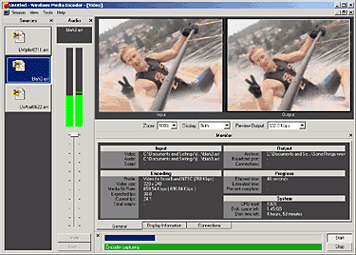
Windows Media Encoder InterfaceWindows Media Encoder is a versatile screen capture, audio, video encoding software from Microsoft. WME captures a window or specified rectangle of the screen, with audio, and produces a compact Windows Media WMV file that can be progressively downloaded and viewed in Windows Media Player.

Windows Media Encoder Tutorials and Resources Roundup

Best Practices for Using the Windows Media Screen Codec - benefits of using the Windows Media Screen codec to capture screen content.

Introduction to Digital Media and the Windows Media 9 Series - Microsoft whitepaper introduces the concept of digital media and explains how you can use the Windows Media 9 Series platform to create, distribute, and play digital media.

Download Windows Media Encoder 10 from Microsoft Website

How to configure Windows Media Encoder (WMV Screencast)
Encode .wav and .mp3 files with Windows Media Encoder

Insert a web URL into your music with Windows Media Encoder
When an audio file contains URL scripts, a browser window opens and a specified Web page appears anytime the song is played on a computer connected to the Internet. That gives you the power to show photographs, lyrics, band information, and even advertisements each time your song plays.

Tutorial to Capture Video Content with Microsoft Windows Media Encoder 7
Create high-quality video content from television, film, and screen sources. Convert live and prerecorded audio, video, and computer screen images to Microsoft Windows Media based content for live and on-demand delivery.

Some software applications may not need to have audio in the final output files. This Microsoft knowledgebase article shows you how to capture a "video only" file with Windows Media Encoder version 7.0.

Streaming live video using Windows Media Encoder 7.1

Encode audio for the Handheld PC with WME 9

How to use Windows Media Encoder to record itself - Screencast

If you have questions about Windows Media, check out Windows Media Encoder Forums and Support

Download Windows Media Codecs - WM9Codecs.exe
Contains Windows Media Audio and Video codecs for Windows Media Player 7.1, Windows Media Player for Windows XP, Windows Media Player 9 Series, and Windows Media Player 10.

Windows Media Encoder Download on Microsoft Website requires Windows validation.

Camtasia Studio 3.0 - Screencasting Swiss Knife

Camtasia Studio 3 is one the most popular Screencasting tools developed byTechSmith. I personally use the wonderful Camtasia Studio with Snagit all the time for my website and presentations.

Camtasia Studio can help you record and edit videos of screen activity in all multimedia formats and enhance the captured material with special effects, narration and a variety of multimedia features. With Camtasia Studio, you can teach and demonstrate complex ideas and subtle points , rather than through words alone with exact video renderings of desktop activity. Stream videos live or distribute by CD-ROM and from the Web.

Camtasia is very popular tool for creating screencast. Even Jon Udell, the lead analyst for the InfoWorld Test Center prefers Camtasia over Qarbon Viewletbuilder andMacromedia Captivate.

Techsmith is now positioning the tool as a Flash Printer for converting CAD Drawings, Photographs to smaller Flash SWF files. The most amazing new features in the upcoming version :

Picture-in-Picture (aka PiP): You can now record the presentation and the presenter. Camtasia now captures video from your video camera and synchronizes it with your screen recording. Now it's easier than ever to deliver training and presentations with a personal touch.

Titling: Give your videos a common look and feel with Titles. Title graphics and text can be inserted to introduce your videos or to add credits to their endings.

The best screencasting software is just getting better. Other new features include quizzing, smaller Flash files, and one month of free web hosting for your videos. If you buy Camtasia Studio 2.1 today, you will get a free upgrade to 3.0 when it's released.

Techsmith has released a free update to Camtasia Studio 3.0.1 which is available for free.

What's new in Camtasia Studio 3.0.1 - Changed the IDs of the PowerPoint buttons so that they don't conflict with the IDs used by the Macromedia Breeze Add-in for PowerPoint.

Compare your version of Camtasia Studio with the latest Camtasia 3.0.1

Techsmith provides a casestudy for converting PowerPoint Live presentations to flash with Camtasia Studio used by Stanford University Professor Carrye.

Thom Robbins tells us that Microsoft Channel 9 team members also use Camtasia Studio for creating screencasts

Get Your Free Microsoft Office Live Workspace Account Now

Microsoft Office Live Workspace, an online file storage for Documents, PDFs, Spreadsheets and Presentations, is now available for everyone without an invite.

If you use any of the Microsoft Office programs including Outlook, you absolutely need this new Office Live Workspace. Here’s why:
1. Unlike other online Office suites, Microsoft Office Live Workspace supports the new Office 2007 File formats (pptx, docx, etc) – you can read these file in the browser though you may not be able to edit them yet.
2. You can download the Office Live add-in and upload documents to Office Live Workspace directly from your Microsoft Office programs.
3. Office Live Workspace offers two-way synchronization with Outlook Calendar, Tasks and Contact list – any changes that you make online are reflected in local copy of Outlook and vice-versa.
4. Your hyperlinks in documents are not converted into plain text. This is a huge advantage if share PowerPoint presentations via Office Live Workspaces that contain links to other web pages – all the URLs stay active and clickable.

Why Online Document Sharing Is Not Like YouTube or Flickr

Francois Ragnet of Xerox has doubts that the model of online document sharing made popular by sites like Scribd, Slideshare, Issuu, eSnips, etc will ever catch up like web video or pictures.

"Powerpoint and other Office documents are aimed with a specific purpose and audience in mind. Compared to pictures and videos, web pages, or blogs, documents are much more complex, focused, and targeted in my view, which make them less compelling to a vast community than a more elementary picture, blog entry, or video." Link.

Convert Word 2003 Documents to .docx Online with Zoho Writer

Zoho Writer. Just import your source file into Zoho and then export that document as a DOCX file.
And like Adobe Buzzword, Zoho Writer also lets you create docx files from scratch inside the browser without requiring Word 2007.
Currently, you cannot import docx files directly into Zoho Writer but that feature may be added soon.

Create .docx Documents Online without Microsoft Word 2007

Question: You want to write some Word documents in the new docx format but there’s no Office 2007 on your computer.

Solution: This problem can be easily solved using Buzzword, the online word processor from Adobe.
Either create a new document from scratch or upload an existing Word 2003 file and Buzzword will convert that to docx which is the default file format of Word 2007.
Like Zoho Writer or Google Docs, Buzzword can also export Word docs to HTML format.

View Excel 2007 Files without Microsoft Office

You got an Excel 2007 spreadsheet in your Inbox but there’s no Microsoft Office on you computer to open that file.

You could either buy Office 2007 or just grab the free Microsoft Excel 2007 viewer that was released this week. This program has been available since long but only the new version supports the xlsx format.

With this new Excel 2007 Viewer, you can view and even print spreadsheets created using any version of Microsoft Excel. You can also copy data from Excel Viewer to another program.
The other option for opening xlsx files is the Office Compatibility pack but that works only if you have a copy of Office 2003 or Office XP.
Excel Viewer [Microsoft Download Center]
Related: Convert XLSX to XLS 

Open .XLSX Spreadsheet Files Without Excel 2007

If you have an .xlsx file attachment in your email inbox but the computer doesn't have Microsoft Office installed to open file of that extension, what are your available options?

The xlsx file format is the default extension for spreadsheets written in Microsoft Office Excel 2007 and Office 2010. The format is currently not support by GMail attachment viewer or any of the online office suites like Google Docs.

However, you can easily convert .xlsx spreadsheet to the traditional .xls format using the Microsoft Office compatibility Pack available here. This will help you open, edit, and save .xlsx files in Office 2000, Office XP, or Office 2003. More details on Office 2007 FAQ.

Alternatively, you can convert .xlsx to .xls or any other text format online using the email conversion service of Zamzar. Just forward the email attachment to xls@zamzar.com or txt@zamzar.com and it will send you a link to download the converted file. 

Unlike the Microsoft compatibility pack, the Zamzar .xlsx to .xls conversion services will not require a copy of Microsoft Office on your computer.

And if you have OpenOffice, Zamzar can also convert the XLSX file to OpenDocument spreadsheet format.

Open .docx Files Without Word 2007 - Convert .docx to .doc Online

Your client just emailed a Microsoft Word 2007 document ending with a .docx extension but you have no clue about how to open and print  that file.

Not a problem, you can either convert the file from docx to .doc format or use one of the online services to view the content of that file without requiring Microsoft Office Word 2007.

See Guide: How to Convert Files to a Different Format

The DOCX format is the default file extension in Word 2007. It essentially a bunch of zipped XML documents - you can even rename the extension from .docx to .zip and extract the contents using Winzip like any other zip file.

To convert .docx documents to .doc format, all you have to do is download the free Microsoft Office compatibility Pack here and you'll then be able to open, print edit, and save .docx files in Office 2000, Office XP, or Office 2003 [much like an advanced Word 2007 File Viewer].

If you are on Mac, you can get the Microsoft Office Open XML File Format Converter for Mac here - this converts .docx to rtf (rich text format) files which can be viewed in Office for Mac and other Mac word processors.

Alternatively, you can convert .docx to .doc or extract text from .docx files online using Zamzar's email conversion. Unlike the Microsoft compatibility pack, these docx to doc conversion services do not require copy of Microsoft Office.

It is also possible to open and edit a .docx file in OpenOffice or StarOffice using the free Open XML Translator from SourceForge which converts .docx Word documents to .odf and vice versa.

Related: Microsoft Office 2007 FAQOffice 2007 Fonts Free

The Word 2007 docx format is currently not supported by GMail Word viewer or Google Docs & Spreadsheets.

Microsoft Office 2007 FAQ - Your Questions Answered

Here are answers to some of your common queries related to Microsoft Office 2007 system:

Q [Philip Canty]. Can I run Microsoft Office 2007 and Office 2003 on the same computer ?

A. Yes, you may install a copy of Office 2007 on the same machine that has Office 2003. However, you will have to choose between Outlook 2007 or Outlook 2003 - both versions of the mail software cannot run simultaneously on the same computer. 

Q. Can I read the files created in Word 2007 on older versions of Microsoft Word (like Word XP or Word 2000)

A. Though Microsoft is yet to release a Word 2007 Viewer, you can read Word 2007 format documents in previous version of Microsoft Office using the free Compatibility Pack tool available at Microsoft Office website.

Q. [Sidra Sarwar] Is there a free add-on to open documents created using Office 2003 in Vista Office 2007 directly ?

A. You do not require any addon for this since Office 2007 can open any document created using a previous version of Office like XP, 2003 or Office 2000.

Q. I have installed a trial version of Office 2007 Professional. Can I convert it to a full retail version using a serial number or should I do a fresh install.

A. Provided that you are not running a beta or pre-release version of Office 2007 trial, type in your 25-character product key and activate the installed copy - you need not re-install Office 2007. [Activation not required if you have purchased a volume license key for Office 2007]

Q. Do I require Windows Vista to run Office 12 ?

A. You do not require Windows Vista to run Office 2007. It will work perfect with Windows XP SP2. 

Q. Microsoft Office 2007 is not available in my native language. Can anything be done about it ?

A. You can get the Office Languages Pack that allows you to create and edit documents in 37 different languages. These localization packs will change the Office interface and menus in your native language plus they come with a speller, grammar checker and thesaurus (aka document proofing tools).

Q. The price of Office 2007 standard works out to more than Outlook 2007 and Office Home and Student version purchased separately.

A. You are not supposed to use the Home and Student 2007 Office on your business computer or for that matter, any commercial use. Also, Home and Student edition isn't eligible for upgrades.

Q. Can I use Adobe Acrobat 8 to create PDF documents in Office 2007.

A. Not yet. Adobe Acrobat 8 PDF macros are not compatible with Office 2007 programs but you may grab the free "Save as PDF" addon from the Microsoft Office website - it can save all documents to PDF format except your Outlook 2007 mail items.

Q. Can I use Microsoft Office 2007 without activation ?

A. If you skip Office 2007 activation beyond a set limit, the software will run in reduced functionality mode - you cannot create or save documents though you can read them or even print them. It becomes more like a free viewer.