Showing posts with label Tech. Show all posts

How to Reset a Router to Factory Default Settings

You may want to reset your router to factory defaults for several reasons. For instance, there could be a power fluctuation and that may have corrupted the router settings. Or you have upgraded your router firmware and the device is no longer working.

In any case, it is pretty easy to reset the router to factory settings. This type of reset is also known as a hardware reset.
Step 1. Turn on the router. We need to perform a reset while the router is powered on.
Step 2. Look at the back side of the router and you’ll notice a very small reset hole – this is often located near the slot for the power cord.
Step 3. Insert a pin, or the tip of a ball point pen, in the hole and press the reset button for at least 10-15 seconds. You may see the power light on the router turn off for a moment and will turn on itself.
Now remove the pin and your router should be reset. To confirm, open the command window and run the following command:
ping 192.168.1.1
If you get a response, your router has been successfully reset and the settings have been restored to the original factory settings.

How to Print Files on a Remote Mac via Dropbox


The previous trick on printing files from mobile phones uses a VBS script that will run on a Windows computer only.
However, if you are on a Mac, you can takes the following steps, as suggested by bbedel, to print files on any printer that’s connected to a Mac.
This uses Automator, a Mac OS application that lets you automate repetitive tasks without knowledge of programming or scripting languages.
1. Create a folder called PrintQueue inside your Dropbox folder.
2. Launch Automator and choose “Folder Actions” as the template.
3. Choose the PrintQueue Folder from the dropdown under “Folder Action receives files and folders added to.”
4. Search for “Print Finder Items” inside Automator and drag it into your workflow. Now select your printer name if it’s different from the default selection.
5. Next search for “Move Finder Items to Trash” action in Automator and add it to your workflow. Save.
When you are sending a print job from your mobile phone to the printer connected to the Mac, save that file to the PrintQueue folder on your Dropbox account. It will then automatically open on your Mac using the associated application, print it and will move it to trash.

The Best Websites to Learn Coding Online

The Learn to Code movement has picked up momentum worldwide and that is actually a good thing as even basic programming skills can have a major impact. If you can teach yourself how to write code, you gain a competitive edge over your peers, you can think more algorithmically and thus can tackle problems more efficiently.
Learn Programming
Don’t just download the latest app, help redesign it. Don’t just play on your phone, program it. — Obama.
There’s no reason why shouldn’t know the basics of coding. You can automate tasks, you can program your Excel sheets, improve workflows, you can extract data from websites and accomplish so much more with code. You may not be in the business of writing software programs but knowing the basics of coding will help you communicate more effectively with developers.
Gone are the days when you had to enroll in expensive computer training classes as now exist a plethora of web-based courses that will help you learn programming at your own pace in the comfort of your web browser.

The Best Sites to Learn Programming

If you are ready to take the plunge, here are some of the best websites that offer courses in a variety of programming languages for free. I have also added a list of companion ebooks that will give you a more in-depth understanding of the language and they don’t cost anything either.
Online Courses & ScreencastsProgramming Books (Free)
JavaScriptCode AcademyLearn Street,Code CombatCode AvengersEloquent JavaScript,JavaScript Guide,Speaking JSJS The Right WayOh My JS,Canvassing
HTML & CSSCode AcademyDon’t Fear The InternetTutsplusLearn LayoutA to Z CSSDashWeb AccessibilityThe Hello World,Khan AcademyHTML5 from ScratchMozillaDive into HTML520 Things I LearnedHTML Dog,HTML & CSSHTML5 for DesignersDOM EnlightenmentHTML Canvas
jQueryCode AcademyTutsplusCode SchooljQuery Fundamentals,Learn jQuery
PythonCode AcademyGoogleLearn StreetPython Tutor,IHeartPYPython for You and Me,  Dive into PythonLearn Python the Hard Way,Think PythonPython for FunTango with Django,Django
Ruby & Ruby on RailsCode AcademyTryRubyCode LearnRailscastsRubymonk,Learn StreetWhy’s (Poignant) Guide to RubyLearn Ruby the Hard WayLearn to ProgramLearn Rails by Example
PHPCode AcademyPHP Programming,Practical PHP
Also see: How to Learn Regular Expressions (RegEx)
Google Apps ScriptGetting StartedOffice HoursGoogle Scripts Examples,Learning Apps Script
WordPressTreehouseWordPress TV
Linux & Shell ScriptingStanford.eduExplain ShellConquer the Command Line
Node.jsNodetutsNode SchoolThe Node Beginner Book,Mixu’s Node bookNode Up and Running,Mastering Node.js
Angular JSCode SchoolEgg HeadLearn AngularAngular JS Tutorial,Thinking Angular,Angular TutorialGetting Started (Adobe)
Also see: Learn Touch Typing & Code Faster
Git (version control)Code SchoolGit Immersion,GitHub TrainingUdacityPro GitLearn GitGists in Github
Objective-C (iOS & Mac)Code SchoolStanfordiTunesU
Chrome Dev ToolsCode SchoolDev Tools SecretChrome Dev Tools Tutorial,UdacityBuilding Browser Apps
Go LanguageGolang.orgGopherCastsProgramming in GoGo by ExampleLearning Go,Building Web Apps with GoLearning Go
JavaLearn JavaCoding BatJava UdemyLearnerooProgramming in Java,Thinking in JavaO’Reilly Learning JavaThink JavaJava & CSJava for Python Devs
Android App DevelopmentUdacity (Google Developers), CourseraThe New Boston,Google UniversityApp Development EssentialsCode Learn,App Inventor (Visual)
D3 (data visualization)Data Visualization for the WebDashing D3D3 Tips & Tricks
Also see: Learn VIM, the text editor for programmers
SQL (Databases)SQL ZooSQL @StanfordEssential SQLSQL for Nerds,Intro to SQLSQL BoltPHP & MySQL
Everything ElseUdacityedX.orgCourseraUdemy$Lynda$Pluralsight$,Treehouse$Open ConsortiumOne Month Rails$

Teaching Kids to Code

If there are kids in the family, you should download either Tynker (Android/iOS) or the Hopscotch app for iPad and they can learn the basics of programming through games and puzzles.
There’s also Scratch, an MIT project that allows kids to program their own stories and games visually. Scratch is available as a web app or you can download it on your Mac/Windows/Linux computer for offline use. Microsoft TouchDevelopBlockly and Alice are some other web apps that will introduce the concepts of computer progamming to your children.
On a related note, the following chart from Google Trends shows the relative search popularity of various programming languages over the last 5 years. The interest in PHP has dipped over the years, JavaScript has more or less maintained its position while the popularity of Python & Node.js is on the rise.
Popularity of Programming Languages

How to Use Windows Media Encoder 9 Series

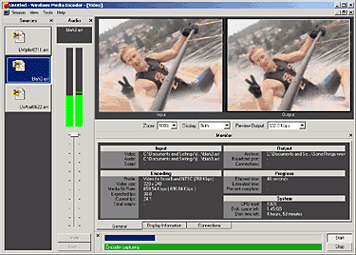
Windows Media Encoder InterfaceWindows Media Encoder is a versatile screen capture, audio, video encoding software from Microsoft. WME captures a window or specified rectangle of the screen, with audio, and produces a compact Windows Media WMV file that can be progressively downloaded and viewed in Windows Media Player.

Windows Media Encoder Tutorials and Resources Roundup

Best Practices for Using the Windows Media Screen Codec - benefits of using the Windows Media Screen codec to capture screen content.

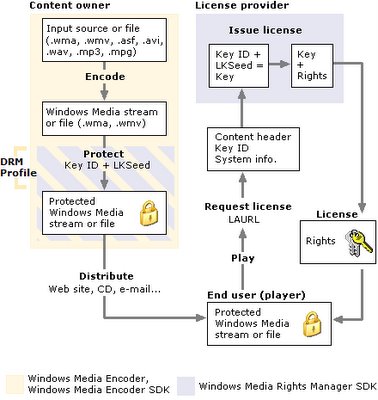
Introduction to Digital Media and the Windows Media 9 Series - Microsoft whitepaper introduces the concept of digital media and explains how you can use the Windows Media 9 Series platform to create, distribute, and play digital media.

Download Windows Media Encoder 10 from Microsoft Website

How to configure Windows Media Encoder (WMV Screencast)
Encode .wav and .mp3 files with Windows Media Encoder

Insert a web URL into your music with Windows Media Encoder
When an audio file contains URL scripts, a browser window opens and a specified Web page appears anytime the song is played on a computer connected to the Internet. That gives you the power to show photographs, lyrics, band information, and even advertisements each time your song plays.

Tutorial to Capture Video Content with Microsoft Windows Media Encoder 7
Create high-quality video content from television, film, and screen sources. Convert live and prerecorded audio, video, and computer screen images to Microsoft Windows Media based content for live and on-demand delivery.

Some software applications may not need to have audio in the final output files. This Microsoft knowledgebase article shows you how to capture a "video only" file with Windows Media Encoder version 7.0.

Streaming live video using Windows Media Encoder 7.1

Encode audio for the Handheld PC with WME 9

How to use Windows Media Encoder to record itself - Screencast

If you have questions about Windows Media, check out Windows Media Encoder Forums and Support

Download Windows Media Codecs - WM9Codecs.exe
Contains Windows Media Audio and Video codecs for Windows Media Player 7.1, Windows Media Player for Windows XP, Windows Media Player 9 Series, and Windows Media Player 10.

Windows Media Encoder Download on Microsoft Website requires Windows validation.

Desktop Screen Sharing Software for E-Meetings

E-meeting solutions enable a computer screen to be shared in addition to sharing a phone line. Sharing applications and documents on a screen enhances a conference call. Most of the popular web conferencing systems are already equipped with Screen Sharing Software so that office workers can connect with remote colleagues as if they were in the same room. 

With services such as WebExMicrosoft Live Meeting , Macromedia Breeze, andNetspoke, meeting participants are invited via E-mail to click on a prearranged link to enter the conference. The shared computer screen can be used to display a specific document or to share a Web browser to demonstrate an online application.

Robin Good mentions several cost-effective screen-sharing services that have extremely low monthly costs, offer a free trial, can be cancelled at any time, and do not generally require complex installation procedures or large software downloads. 

NetOp School takes the concept of the "Virtual Office E-Meeting" to the classroom. Students located in your computer lab, across campus or anywhere in the world can log into your virtual classroom where you can broadcast your screen, multimedia files, or any of the student's screens. The entire virtual training sessions can be recorded and you can monitor students' screens as they work during a class. 

InformationWeek has good list of points that you would like to answer before choosing a e-meeting solution vendor.

Q. Should I license the software or just subscribe ?
A. Depends on how often will E-meetings be held? Many services are priced by subscription rather than by individual meetings. Even if you hold meetings infrequently, it may be less costly to subscribe. For very heavy usage, licensing of software to run on your own server may be more cost-effective, but it isn't offered by every vendor. (Citrix users may want to consider their GoToMeeting product.)

Q. Will pop-up blockers stop the E-meeting software from functioning?
A. Many users have pop-up blockers installed in their browsers but don't always know how to disable them.

RealVNC is the only web based screen sharing software that is available for free. UltraVNC/TightVNC are a big improvement over regular VNC. Read this interestingSlashDot thread on choosing the right VNC Software for your job. 

Listen to Stanford University Lectures Online

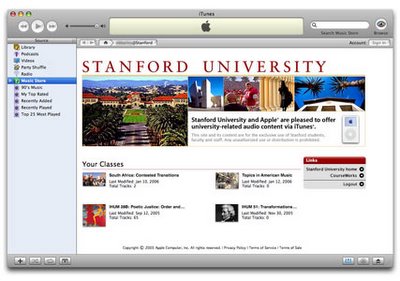
Stanford University Faculty lectures, seminars, interviews and panel discussions featuring Stanford faculty from across disciplines are now available online for download to anyone, anywhere for free.


All you need is an Apple iPod or a PC / Mac with the Apple iTunes software. You can download all of the content from Stanford on iTunes for free .

To get started, launch the iTunes software and search for "Stanford" in the iTunes U section. This is also available inside the iPhone and iPad.

Open Stanford inside iTunes, browse the lectures, presentations and other audio content, download them to your computer or burn a CD.

Stanford started this public podcasting service Stanford on iTunes using Apple iTunes U service after running the program internally for some time.

Screencast, Photocast, Vidcast, Webcast, Skypecast, Textcast, Podcast: Differences explained

Screencasting, Webcasting, Photocasting, Podcasting, Vidcasting or Vodcasting, Skypecasting, Mobilecasting, Textcasting, Coursecasting, Blogcasting - these are all different forms of broadcasting digital content using basic hardware, software where you play the role of a actor, producer and the director. You create content on your computer and using RSS, broadcast it over the internet to be consumed by millions of people.

So let's put the techie jargon aside and try to understand these "complicated" terms in simple English so that you don't feel embarrased when someone mentions them in the next geek conference.

Podcasting - A podcast is just another mp3 file that you can play either on your computer or any portable device like the Apple iPod or Creative Zen. Podcasting refers to the entire process of creating the podcast [audio], editing and publishing to the web via RSS. Podcasting requires a microphone and audio editing software like Audacity or Adobe Audition. Mac users are lucky to have Garageband and iLife.

Autocasting - Autocast is like a cousin of podcast - the only difference being that the audio is not narrated by a human being but it has been generated automatically from the blog feed using a text to speech conversion engine. Talkr is one such Autocast service that converts the text inside RSS feeds to podcasts [mp3 files] for free.

Blogcasting - Barring a few search engines like Blinkx, most cannot index audio content. Therefore some podcasters attach a transcript of the podcast to their blog so that both human beings and search engines read [and index] what's there inside the podcast show. This is BlogCasting - blog + podcasting.

Voicecasting - VoiceCasting is the distribution of podcasts directly to a mobile phone, traditional phone, or VoIP phone. The audio is taken from a Podcast, and played back live to the listener. VoiceCasting is sometimes even referred as Phonecasting.

Mobilecasting - Like voicecasting, mobilecasting refers to downloading and listening to podcasts on cellphones. When we compare with voicecasting where the user dials a number to get the podcast,in Mobilecasting, the users subscribes to the podcast feed and automatically gets the content on his phone without making a separate request. For some, creating/recording podcasts using a mobile phone also falls under the mobilecasts umbrella. GCast is one such service that lets you record your podcast via a toll-free call from any phone.

Vodcasting - often used interchangeably with Vidcasting which essentially means creating and distributing video podcasts. Unlike Podcasting where you only require a microphone, for creating Vodcasts you need a video camera (preferably HD) and video editing software like Sony Vegas, Adobe Premiere or Apple Final Cutpro. The video on demand {vod) content is distributed via RSS feeds. Associated terms are vlogs, vlogging, vodcasts and vcasts. Rocketboom and Diggination are popular vodcasts.

Learncasting - elearning via feeds - Learncasting is a category of podcasting or even vodcasting that aims deliver educational content. Stanford University professors are already putting their lectures on iTunes. Also know as podagogy.

Webcasting - The term webcasting is usually reserved for referring to non-interactive linear streams or live events like Product launches, stockholder meetings or reporting quarterly earnings. A webcast is similar to a broadcast TV show but designed for internet transmission. Webcast clients allow a user to connect to a server, which is distributing (webcasting) the webcast, and displays the televisual content to the user. 

Related: Desktop Screen Sharing.

Skypecasting In simple terms, Skypecasting means recording your Skype conversations, conference calls and interviews for inserting in podcasts. The person who does the recording is known as a SkypeCaster while the recorded audio is called a SkypeCast.

Photocasting is a new way of sharing photos accompanied by music or narrations. It's like sending your photo album to your friends and family, and having it change automatically on their computers when you update it on yours. When your grandmother subscribes to your photos [photocasts], she'll see them in her iPhoto library just as you see them in yours.

Screencasting According to Jon Udell, a screencast is a digital movie in which the setting is partly or wholly a computer screen, and in which audio narration describes the on-screen action. Capturing a screencast needn't be much more complicated that capturing static screenshots. Screencasts are excellent tools for learning how to use computers, and several podcasts have started to teach computer users how to use software through screencasts. Techsmith Camtasia Studio is pretty much the industry standard for creating screencasts.

TextCasting is just a day old term coined by Slate Magazine. Just like Blogcasting, Slate is looking to make text of some of its articles available for reading on the iPod. Lexus, which advertises on Slate podcasts, is sponsoring the textcast, with its logo appearing where the album art is usually shown and in a text ad within the story.

CourseCastingApple allows colleges to set up customized portions of the iTunes Music Store to distribute course content and other audio and video material. CourseCasting allows professors to record their lectures and make them available for students to download and listen to on their iPods or computers.

BlogCasting: Blogcast is just another Microsoft term to describe video podcasts for demonstrating software simulations like Screencasts. Microsoft refuses to accepts Podcasts since Pod is derived from Apple iPod which is Microsoft's rival. Members of the MSDN community produce blogcasts using Windows Media Encoder

10 Killer Tips for Creating Successful Audio Podcasts

What do you need to produce a podcast show ? Is it just a Mic and a computer with Audacity software or something more ?

Well, you can definitely create a podcast with the above equipment/software but if you really want people [other than your mom and wife] to listen and subscribe to your podcast feed, you need to go that extra mile. Here are some essential Podcasting tips that you should know to have a finished product which stands apart from the crowd:

1. Always maintain a constant distance between your mouth and the microphone [~3"] so that the sound levels do not vary during the recording process. If the audio is bad, people would delete your feed immediately from their iTunes list.

2. While standalone USB microphones like Samson have a better sound quality than Headset microphones, some people still prefer the latter as they allow them to move their head around while speaking without affecting the recording volume.

3. It is probably a good idea to begin and end your Podcast with some fading music [length ~10 seconds either sides]. You'll find millions of royalty free audio clips in wav/mp3 format on the Internet.

4. A sample rate of 44.1 KHz with 16 bit resolution in either mono or stereo channels is perfect setting for most podcasts.

5. Most audio software have a recording meter that displays the volume level in real time. You may want to maintain the level around the -12db mark for best recording. Don't let it touch the infinite mark.

6. Take some time off for choosing a good podcast webhost. You should consider your average show length and number of subscribers before shortlisting a podcast host.

7. There's still no Adsense like program that will help you make money from Podcasting. Secondly, search engines do not index MP3 files so you should always create proper shownotes [in text] to accompany your blog posts that will bring in the search traffic which may ultimately pay you.

8. While Audacity is the most popular Podcasting software because it is free and has all the required features, professional podcasters may also consider investing Adobe Audition, Soundtrack Pro or Garageband. 

9. Online audio interviews can be recorded over Skype using various third-party software or plugins. However, you should consider recording voice of different participants to separate audio tracks or channels to prevent voice overlaps which are otherwise impossible to separate incase of some goofup.

10. Never use sound clips from music albums or hollywood movies as you may seriously run into copyright issues later. There are plenty of sites offering good podsafe music.

I would also suggest that reading this Digital Audio Primer which runs you through basic sound fundamentals like Sampling Rates, Waveforms, Bit Depth, etc. While you can still do podcasting without learning the sound jargon, it would always help if you want to go that extra mile.

And finally, edit your audio mercilessly. Remove all pauses, coughs, fillers ("you know"), uhs and ums as they bore audience and increase the length of your podcast and also the size of the mp3 file. The background music should be very soft so that the main voice over is clearly audible. Some people make that mistake of keeping the background music level either same or even more than the actual podcast host voice which just turns away listeners never to return again.

Always remember that the subscriber has taken too many pains to download your podcast onto his iPod which he would listen on way to office. It's your duty not to disappoint him and present him with that perfect sound which makes him return for future episodes.